BlueStacks 4 to run Android Cave Survey Apps

At the risk of digressing from direct relevance to Therion... And of exposing my ignorance and incompetence… Looks like SexyTopo works fine in Windows 10 in BlueStacks, subject to the proviso that Bluetooth is not accessible. And files in Windows ThisPC Documents and Pictures and \ProgramData\BlueStacks\Engine\UserData map automatically and directly to BlueStacks sdcard/windows/Documents, Pictures and BstSharedFolder Not quite as documented, but very nice and seamless. I suspect it depends on the particular setup you choose - I accepted the default of Samsung S8+. But I have not made complete friends with the BlueStacks Media Manager yet. I cannot delete unwanted folders (can only delete files), although SexyTopo provides a survey deletion function, so that is an acceptable workaround wher Using the Import from Windows script I find I can only import files. It will not import folders or file structures. Found some info in a general search that suggests that BlueStacks Media Manager cannot generally select folders. Following Tarquin’s guidance below, I get tripped up at the lines marked **. The screenshot below shows what I see after importing from windows a set of files and then selecting them. I would like to now copy them or preferably move them to sdcard/Documents/SexyTopo/Surveys/… But all the Media Manager presents me with is an option to Export to Windows (from whence they were just imported!), to delete them or select all. (These ‘Imported Files’ happen to be stored in Explore sdcard/DCIM/SharedFolder by the way, but accessing from there also does not allow the files to be moved) So I’m stuck, I cannot move files to a location that SexyTopo can access. How to copy/paste/move folders and files within BlueStacks? How to delete folders within BlueStacks? Seems like basic functionality, but only found two questions on this with a general search, both of which unanswered. The BlueStacks help and the many search other results all seem to skirt around these particular questions. It really feels like I must be missing something very obvious. Do I need to install a third-party file manager? Bruce -----Original Message----- ... BlueStacks 4 (not available on version 3). Start it, log in to Play Store. "Home" tab - Library - Google Play Store, install SexyTopo. "Home" tab - Library - System apps - Media Manager. Import From Windows, select all the files in a SexyTopo data folder (whatever you imported into Windows from your Android device Documents\SexyTopo\Surveys\somesurvey). Imported files. Tap and hold on the first file to select it. Tap on the next one etc. until all are selected. ** Click the Save icon. ** Save it to Internal shared storage\Documents\SexyTopo\Surveys\somesurvey (make sure you name the folder correctly or it won't work). You can now access your survey from the SexyTopo app. Hope this is useful to you Bruce. I am guessing the same approach probably works for TopoDroid, but I do not use it, so have not tested it. _______________________________________________ Therion mailing list <mailto:Therion@speleo.sk> Therion@speleo.sk <https://mailman.speleo.sk/listinfo/therion> https://mailman.speleo.sk/listinfo/therion
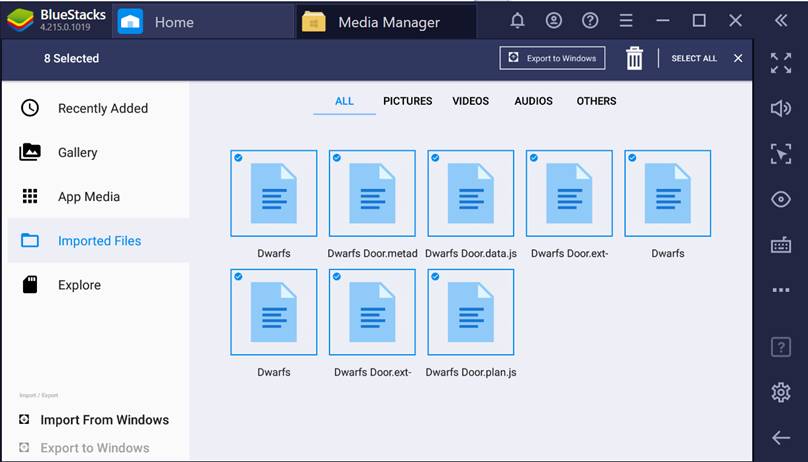

But I have not made complete friends with the BlueStacks Media Manager yet.
It seems like a functionally poor file manager. The only bonus is that it knows how to "import" into a virtual storage area, or see limited parts of your Windows disk (the "Windows" folder is empty when using other file manager apps). Since you said that imported files seem to be stored in "sdcard/DCIM/SharedFolder", you can also use any other file manager to get at them.
But all the Media Manager presents me with is an option to Export to Windows (from whence they were just imported!), to delete them or select all.
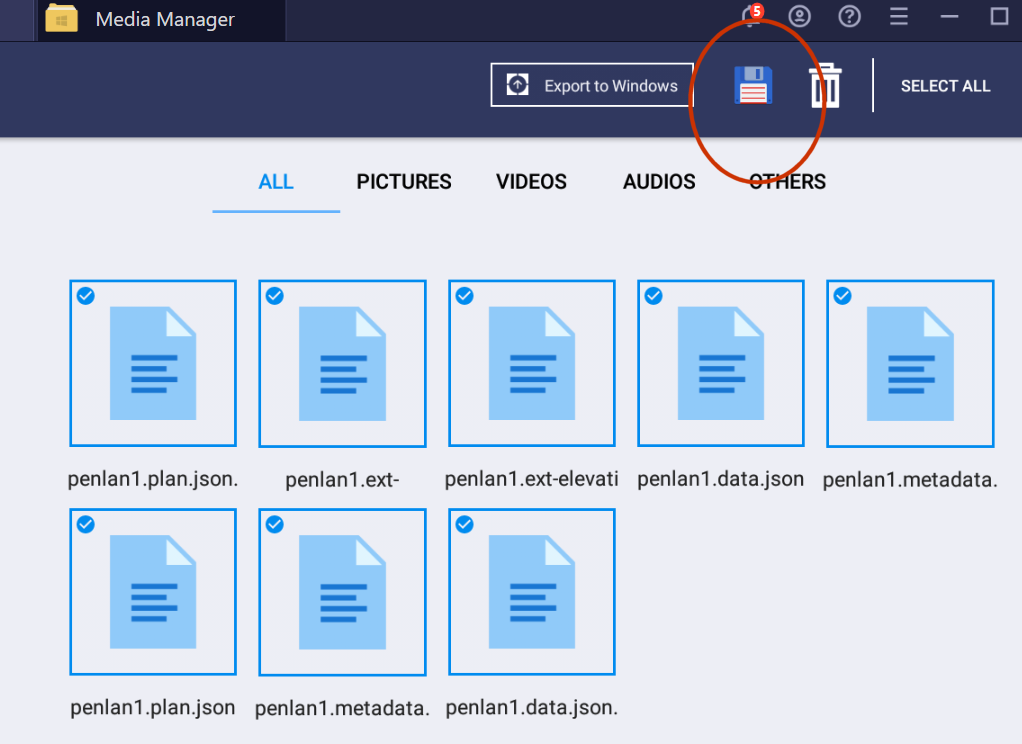
See what I attached. I also think that when I first tried it ,that save icon wasn't there. Then I tried importing an image file (.png) and clicked on it to view it. Then I noticed a save icon in the photo viewer. Then I went back to look at "imported" and it had a save icon, and I felt like maybe I had been blind the first time. But maybe it wasn't there the first time... It's there permanently now, even after I deleted files from it.
How to copy/paste/move folders and files within BlueStacks?
Files only, I think. But once you have imported or "saved" them onto the Android disk, you can move and delete folders with any other file manager app (Total Commander, for example, one of the most functionally complete, but also a little complex).
How to delete folders within BlueStacks?
Total commander or another file manager app.
Thanks Tarquin The Android Windows space seems to involve soo much pain when it comes to managing files, and even more so when using a virtual Android device (on BlueStacks). I have reverted to using a physical Android device connected to Windows via USB. Bit of a pain, but at least Windows Explorer can reliably see and move and delete folders and files. The only downside is that I cannot text edit json files on the device directly from Windows, but I can copy them back and forth, so it works out in the end. Bruce -----Original Message-----
But I have not made complete friends with the BlueStacks Media Manager yet. It seems like a functionally poor file manager. The only bonus is that it knows how to "import" into a virtual storage area, or see limited parts of your Windows disk (the "Windows" folder is empty when using other file manager apps). Since you said that imported files seem to be stored in "sdcard/DCIM/SharedFolder", you can also use any other file manager to get at them.
Total Command, Media Manager and Windows sometimes report the same folder contents in the various shared folders and in folders inaccessible to windows, but more often they do not. It is completely fickle (which pretty much sums up my entire experience with Android file management). Total Command does not entirely replace the BlueStacks Media Manager it seems, as it cannot see the same folder mappings (could be my ignorance - too me a while to decipher Total Command) so I end up having to use both for different steps the folder transfer process. Have been careful to 'reload'/'refresh' folders and to leave a minute or so to allow for any lag in the system. To little effect.
But all the Media Manager presents me with is an option to Export to Windows (from whence they were just imported!), to delete them or select all. See what I attached. I also think that when I first tried it ,that save icon wasn't there. Then I tried importing an image file (.png) and clicked on it to view it. Then I noticed a save icon in the photo viewer. Then I went back to look at "imported" and it had a save icon, and I felt like maybe I had been blind the first time. But maybe it wasn't there the first time... It's there permanently now, even after I deleted files from it.
Well I tried what you suggested, restarting BlueStacks and Windows a number of times over a number of sessions and still no 'Save Icon'. Then this morning I thought I'd have a look, and viola a 'Save Icon', and it does work, but the general unreliability of the visibility and reporting between the two Android file managers and Windows means that I am not really any further ahead.
How to copy/paste/move folders and files within BlueStacks? Files only, I think. But once you have imported or "saved" them onto the Android disk, you can move and delete folders with any other file manager app (Total Commander, for example, one of the most functionally complete, but also a little complex).
Works sometimes, but soo inconsistent and unreliable. END
participants (2)
-
 Bruce Mutton
 -
 Tarquin Wilton-Jones