xtherion - Multiple background sketches

A week ago we had two teams of surveyors working in some very tight side areas of a cave. In the end we discovered that it was all one room. We came away with at least five pages of sketch depicting various areas of the room. It is probably not complete ... Doing a join on room sketches like this is probably not possible. Some of the sketches don't have any wall, and for two of them the wall is only along one side. I think I need to some up with some way to do the whole room in one scrap. In this case the sketches are all the same scale (1 inch to ten feet), and I rotated the scans so that north is the same direction on all of them. In xtherion I see that multiple background images can be brought in to a single th2 file. I tried it and did not immediately see what I want. So my questions to the group ... 1) Is there a way to drag/drop reposition a background image? 2) Is there a way to make images transparent? I tried fiddling with the gamma slider but it did not do anything for transparency. 3) Is there a way to crop off arbitrary sections of a background image? Some of the sketch pages also have cross-sections, and those will seriously confuse things when trying to place objects. I would like to crop them out. 4) Is this something that I need to do in an external image editor like Gimp? I have not used Gimp in several years. The learning curve is daunting. Thanks! ======== Bill Gee

21. 6. 2021 v 15:54, Bill Gee <bgee@campercaver.net>:
1) Is there a way to drag/drop reposition a background image?
Doubleclick with right button
2) Is there a way to make images transparent? I tried fiddling with the gamma slider but it did not do anything for transparency.
No
3) Is there a way to crop off arbitrary sections of a background image? Some of the sketch pages also have cross-sections, and those will seriously confuse things when trying to place objects. I would like to crop them out.
You should do it in external photo editor but in xTherion you may easy switch order of background images.
4) Is this something that I need to do in an external image editor like Gimp? I have not used Gimp in several years. The learning curve is daunting.
Try any simple photo editor - most of them are able to crop a part of image. Adobe Spark https://www.adobe.com/express/ https://www.nchsoftware.com/photoeditor/index.html <https://www.nchsoftware.com/photoeditor/index.html> and many more. As a tip: compile with sketch included as .xvi may help you much. Martin thconfig: source ./th2_pro_xvi/colibri_2_xvi.th #sketch-warp plaquette layout morf sketches on endlayout export map -o ./output_xvi/4115-4116-4117.xvi -layout morf
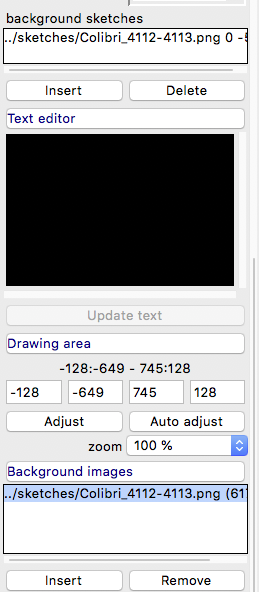
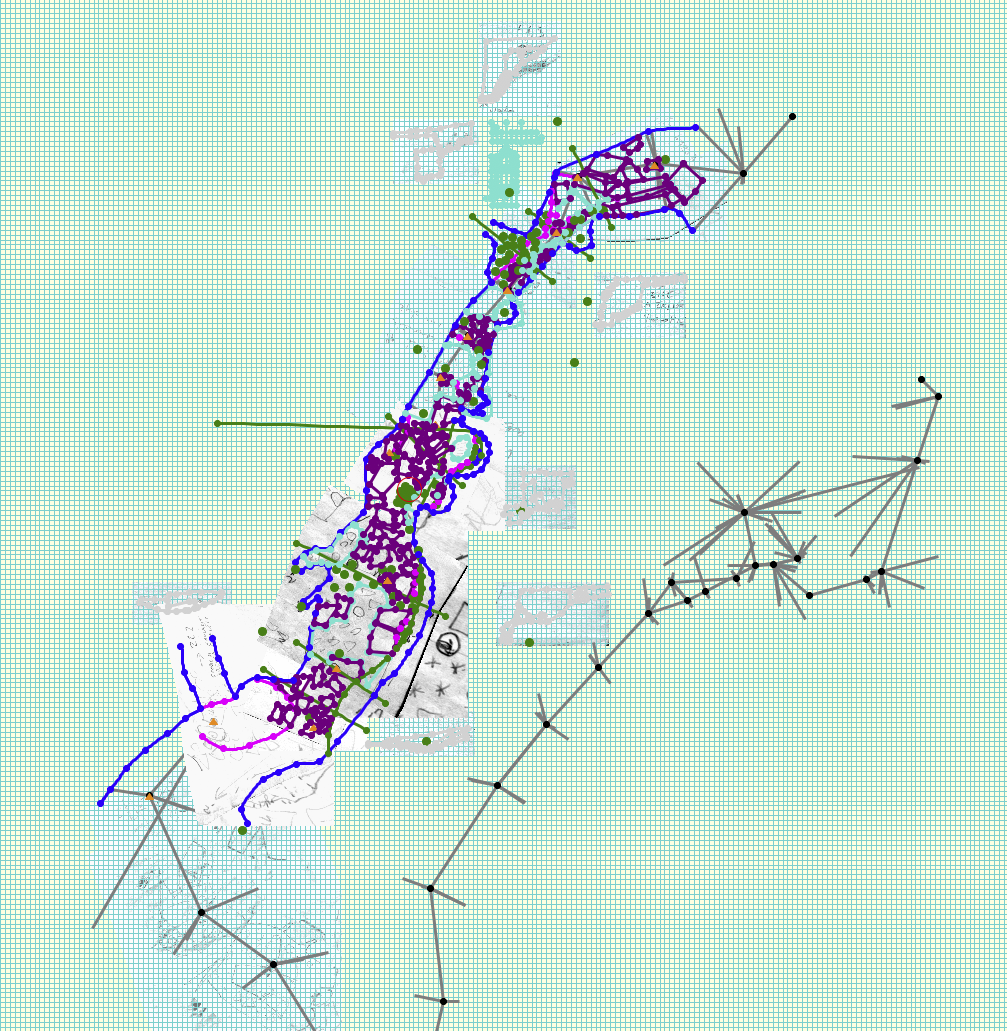
I finally figured out how to move the background images ... "Double-right-click" is probably not an accurate description. Every time I did a true double-click with the right (or alternate) mouse button, nothing happened. The trick, which I discovered quite by accident, is that you must hold down the right mouse button on the second click. Do a click,click-and-hold. With that secret the background images can be moved around. Getting them positioned correctly, though, is difficult without some transparency. I have a simple photo editor (Gwenview) but it can only crop a rectangle. It also cannot set transparency. I think I will have to spend some time with Gimp. I hauled it out this morning and figured out how to do a "lasso" selection. It was actually fairly easy. I figured out how to import multiple images, setting each one as a layer. Now I need to figure out how to set transparency on each layer. I wonder if Bruce's faint memory about setting transparency with an external editor worked because of using PNG format? My own faint memory is that xTherion uses different libraries to handle png and jpg files. Handling of transparency is probably a feature of the image library rather than xTherion. Tarquin mentioned using invisible walls. I have done that once when I mapped a shelter cave. That cave (really more of an overhang) was 200 feet wide and about 20 feet deep. I used an invisible wall to mark the cliff edge that was the outer part. For this purpose getting Therion to consider all of the room as "inside" would be a challenge. I have had situation where joining two passages left a white triangle in the center because Therion did not think that was part of the cave. I have also done line end-point joins. Those are a real pain to keep straight. They work find when done. In this case I will probably have to do some of those to get the room joined to the rest of the cave. The more I look at the sketches, the more I think we need another trip to this room. I think what I will try to do is merge all the existing sketches, then print them on a single piece of graph paper. Back at the cave I will add more to that paper. Scan it and use it for the background. ======== Bill Gee On Monday, June 21, 2021 1:11:33 PM CDT Martin Sluka via Therion wrote:
21. 6. 2021 v 15:54, Bill Gee <bgee@campercaver.net>:
1) Is there a way to drag/drop reposition a background image?
Doubleclick with right button
2) Is there a way to make images transparent? I tried fiddling with the gamma slider but it did not do anything for transparency.
No
3) Is there a way to crop off arbitrary sections of a background image? Some of the sketch pages also have cross-sections, and those will seriously confuse things when trying to place objects. I would like to crop them out.
You should do it in external photo editor but in xTherion you may easy switch order of background images.
4) Is this something that I need to do in an external image editor like Gimp? I have not used Gimp in several years. The learning curve is daunting.
Try any simple photo editor - most of them are able to crop a part of image.
Adobe Spark https://www.adobe.com/express/ https://www.nchsoftware.com/photoeditor/index.html <https://www.nchsoftware.com/photoeditor/index.html> and many more.
As a tip: compile with sketch included as .xvi may help you much.
Martin
thconfig:
source ./th2_pro_xvi/colibri_2_xvi.th
#sketch-warp plaquette
layout morf sketches on endlayout
export map -o ./output_xvi/4115-4116-4117.xvi -layout morf

On Mon, Jun 21, 2021 at 04:31:45PM -0500, Bill Gee wrote:
Now I need to figure out how to set transparency on each layer.
Bring up the Gimp "Layers" dialog (shortcut key is Ctrl+L) and you can click on each layer and drag the "Opacity" slider to make them partly transparent. Or you can change the mode on each layer to "Darken only" and the result will be the darkest part of any layer, which is probably what you're after (assuming your sketches are dark lines on a white background).
I wonder if Bruce's faint memory about setting transparency with an external editor worked because of using PNG format? My own faint memory is that xTherion uses different libraries to handle png and jpg files. Handling of transparency is probably a feature of the image library rather than xTherion.
I don't think the standard JPEG format supports transparency. Cheers, Olly

Handling of transparency is probably a feature of the image library rather than xTherion.
I don't think the standard JPEG format supports transparency.
Correct, jpg does not support transparency, so you must use png to have any hope of achieving a transparent background to an image. Bruce
22. 6. 2021 v 10:04, Bruce Mutton <bruce@tomo.co.nz>:
Handling of transparency is probably a feature of the image library rather than xTherion.
I don't think the standard JPEG format supports transparency.
Correct, jpg does not support transparency, so you must use png to have any hope of achieving a transparent background to an image.
Bruce
You are right - png file Martin
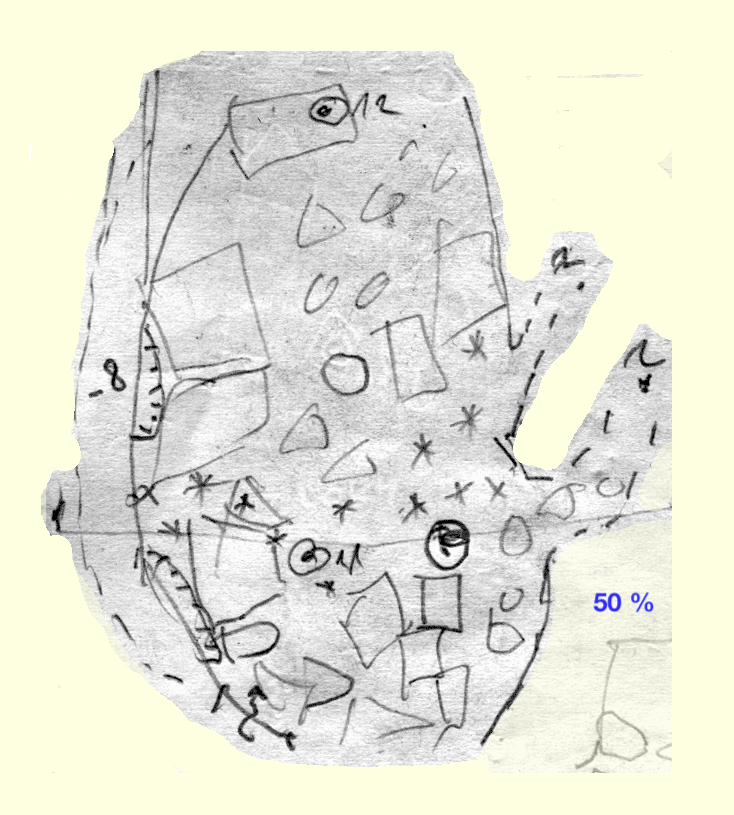
Hi Olly - Thanks for the hints! I was able to get several sketches combined in GIMP. Looking at the result, it is very obvious that much more work is required in the cave. There is a huge hole in the middle which has no detail at all. There are missing walls in several places. My plan now is to print the combined sketches on a piece of paper. The next survey trip I will draw more on it. That will then become the background in Therion. The room is not so big as to be a problem in Therion. It would probably fit in a bounding box 25 meters on a side. That is a large scrap, but I think it should be no problem to draw. The two entrances to the room are well-defined, so adding it to the map will be fairly easy. ======== Bill Gee On Monday, June 21, 2021 6:24:28 PM CDT Olly Betts wrote:
On Mon, Jun 21, 2021 at 04:31:45PM -0500, Bill Gee wrote:
Now I need to figure out how to set transparency on each layer.
Bring up the Gimp "Layers" dialog (shortcut key is Ctrl+L) and you can click on each layer and drag the "Opacity" slider to make them partly transparent. Or you can change the mode on each layer to "Darken only" and the result will be the darkest part of any layer, which is probably what you're after (assuming your sketches are dark lines on a white background).
I wonder if Bruce's faint memory about setting transparency with an external editor worked because of using PNG format? My own faint memory is that xTherion uses different libraries to handle png and jpg files. Handling of transparency is probably a feature of the image library rather than xTherion.
I don't think the standard JPEG format supports transparency.
Cheers, Olly
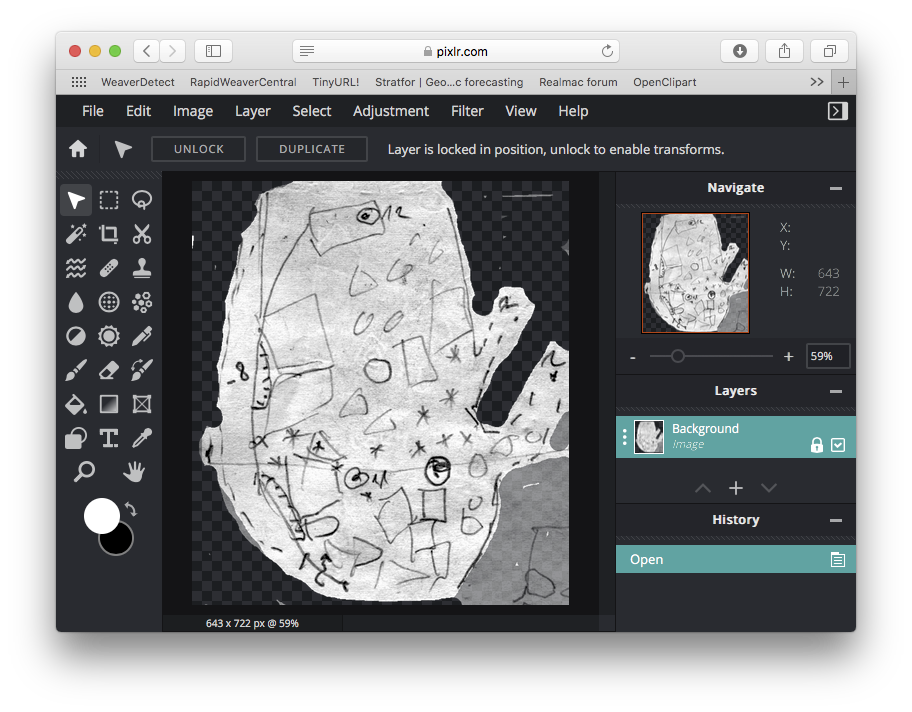
Hi Bill, anyway you may do it all - exception of cropping sketches - in Therion. And main advantage is you’ll have all sketches in scale in correct places according stations. Saples of PDFs with sketches are in therion/samples/morphing. And here is an editor which is enough to edit .png files for Therion including erraser: https://pixlr.com/e/#editor Martin
22. 6. 2021 v 15:40, Bill Gee <bgee@campercaver.net>:
Thanks for the hints! I was able to get several sketches combined in GIMP. Looking at the result, it is very obvious that much more work is required in the cave. There is a huge hole in the middle which has no detail at all. There are missing walls in several places.
My plan now is to print the combined sketches on a piece of paper. The next survey trip I will draw more on it. That will then become the background in Therion.
21. 6. 2021 v 23:31, Bill Gee <bgee@campercaver.net>:
"Double-right-click" is probably not an accurate description.
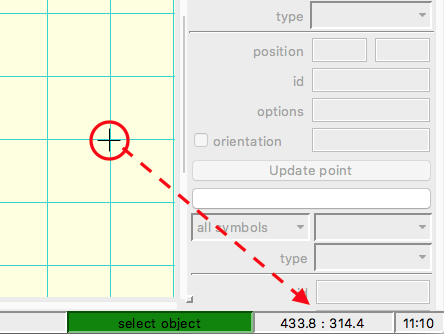
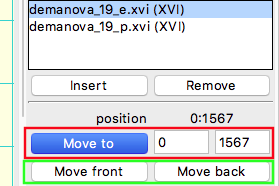
I apologize myself for misunderstanding. For me to move an object in an application on computer screen is always click or double click, hold and drag that object. Sorry again. When one uses xvi file which includes transparent rectangular grid and centerline with stations and splay shots and it is on top of stack of sketches and xvi files in scrap setup one may positioned correctly a sketch very easy, because stations are visible both on xvi layer and on sketch. Double click with right button on particular station on sketch, hold right button and drag mouse you may move sketch to correct position. Another possible way is to use windows with coordinates of lower bottom corner of an object and change them manually. Correct coordinates you may read in right lower corner of map editor window, where the coordinates of cursor are showed. And if one uses morphed sketches from xvi, they should fit with all stations on that sketch. If one uses extra points splay shots should fit too. Martin

Doing a join on room sketches like this is probably not possible.
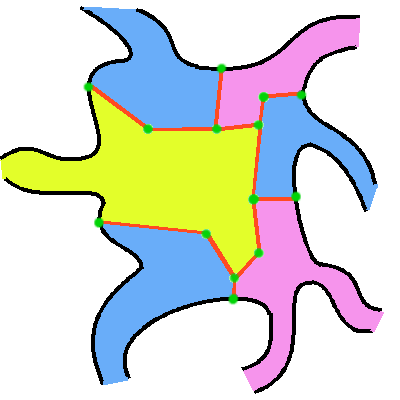
Well, it is. But it will be a bit of work. You draw scraps with invisible walls (or any other line with -outline out) as their edges where there is no real wall. Personally, I would use a border with "-outline out -visibility off" to draw the boundaries between scraps. Then use line joins to join each and every set of points to the related points in the other scraps. I personally use "point crystal" on each line point to work out where they end up, and move the crystals to make the lines match fairly closely, then snap the line points to the crystal locations so that when the "join" gets used, it lines up nicely with minimal warping. Now the crystals can be deleted again. This allows you to solve this issue in all cases, including a survey that has to halt in the middle of a mega chamber due to lack of time, or because a survey tool runs out of battery. It even works in cases where your sketches are drawn in different scales (such as with old style paper surveys). I attached an example, showing a chamber with multiple scraps extending into it. Each green spot is a linepoint which gets used in the "join" for all scrap edge lines that it touches. This approach works well only if each scrap will get a similar background colour, so perhaps not useful for "colour by scrap". The "join" command for a pair of lines looks like this: join one_line_id:1 another_line_id:3 -smooth off Hope I am not teaching my grandmother to suck eggs... (The main difference between using "wall" lines and "border" or any other lines, is that "wall" lines get used when performing scrap "join" commands, and the others do not. As long as you are using line joins instead of scrap joins, it won't matter which line types you use.) Hope this helps. Tarquin
participants (5)
-
 Bill Gee
 -
 Bruce Mutton
 -
 Martin Sluka
 -
 Olly Betts
 -
 Tarquin Wilton-Jones